

No results for ""
File Management
Create, manage, and organize your sheets efficiently. All changes are persisted automatically.
-
Create Files: Start new sheets for analysis, tracking, or live dashboards.
-
Rename & Organize: Rename files and keep your workspace clean and structured.
-
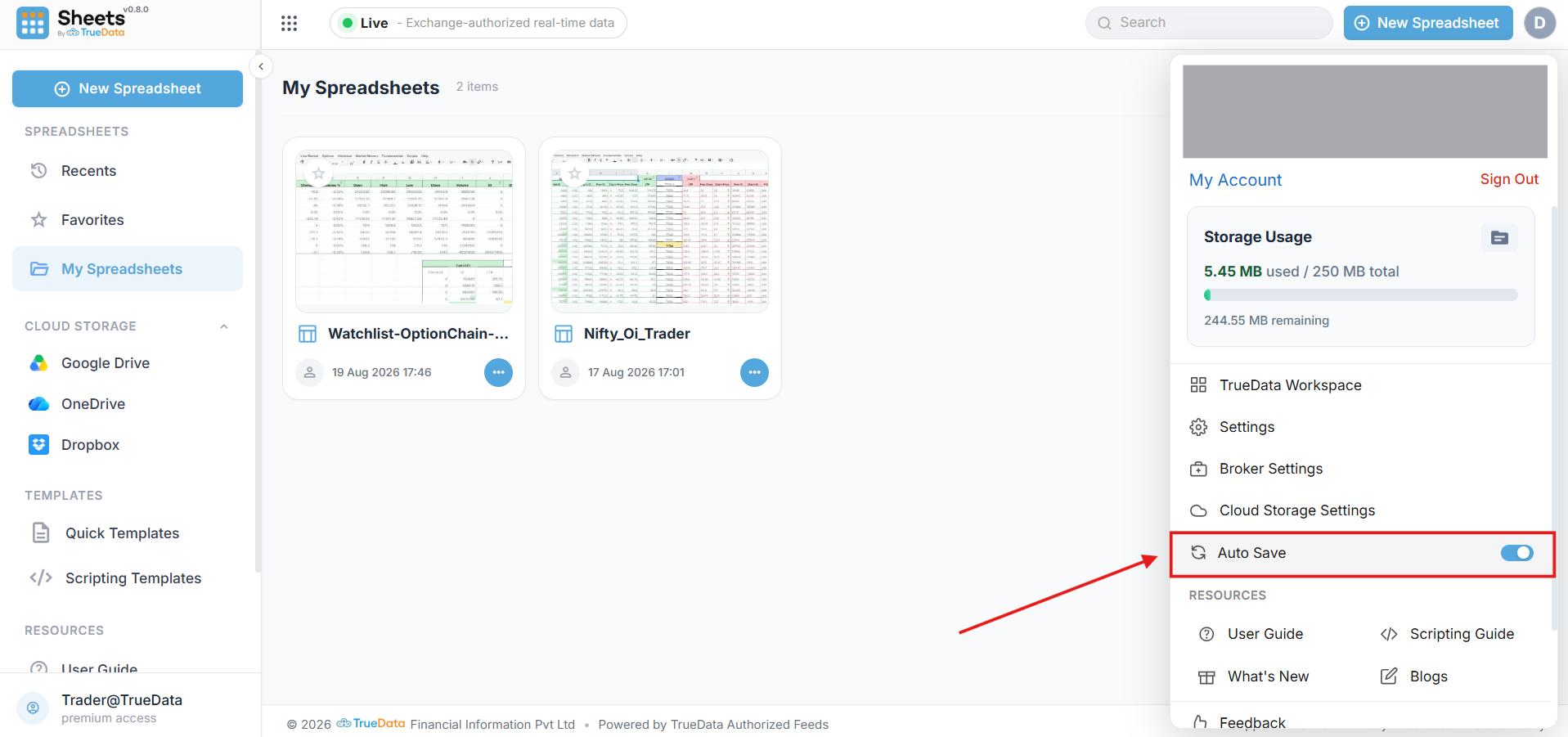
Auto-Save: Every change is saved automatically in real-time - no manual save needed. Use Ctrl+Z to undo within the same session.
Save Destination
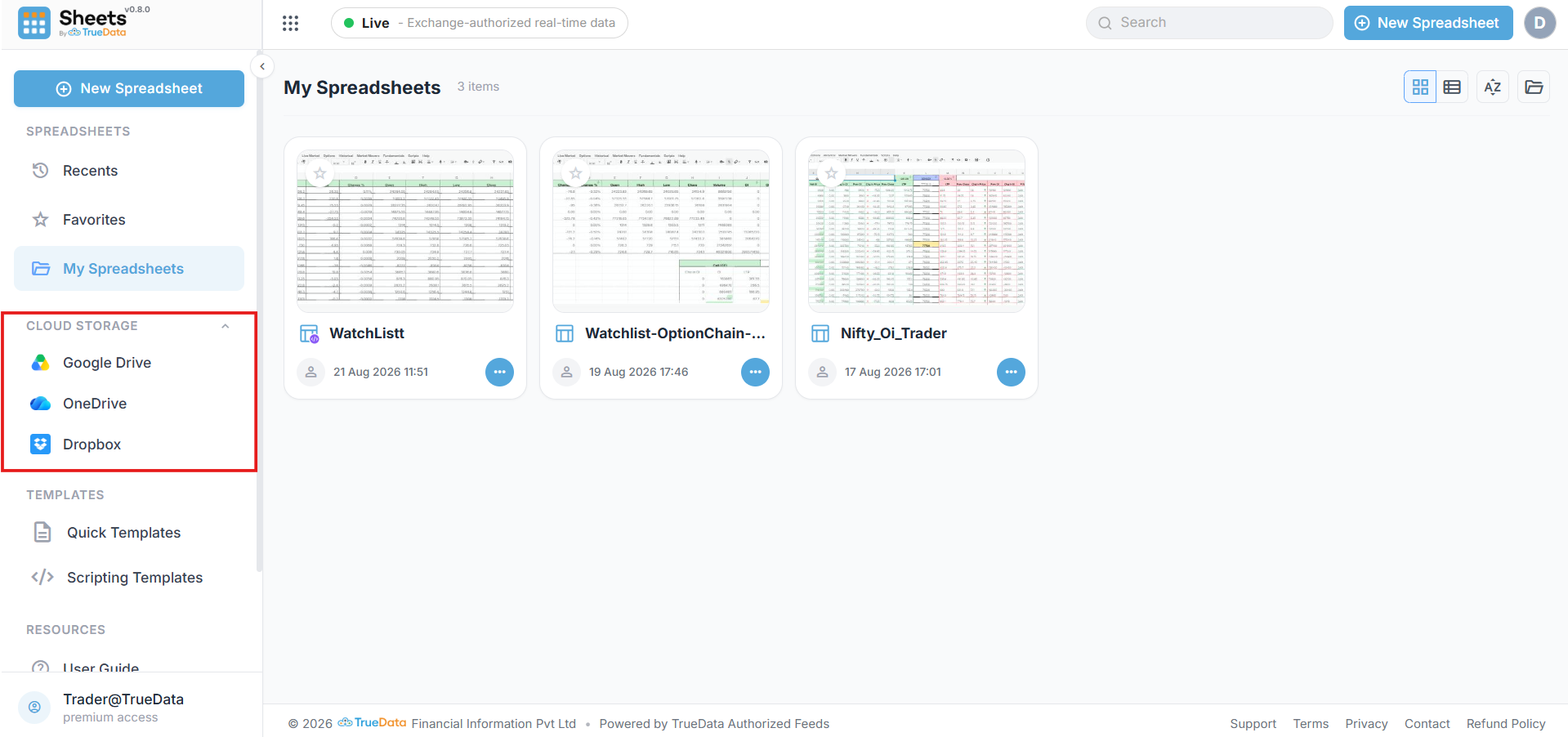
When saving a sheet, choose exactly where it's stored. Keep it on TrueData's own encrypted servers, or sync it directly to your preferred cloud storage account.
Sheets saved to TrueData Cloud are stored on TrueData WorkDrive and encrypted at rest. Files opened from Google Drive, OneDrive, or Dropbox stay in your own account — TrueData does not retain a separate copy.
-
Name Your File: Enter a filename in the "Save as" field before choosing a destination.
-
Pick a Destination: Use the "Where" dropdown to select TrueData Cloud, Google Drive, OneDrive, or Dropbox.
-
My Drive or Pick Folder: For third-party storage, save straight to the root of your account, or pick a specific folder.
TrueData Cloud
Saved to TrueData's own encrypted servers. This is the default and recommended destination.
Google Drive
Save to My Drive or pick a specific folder in your Google account.
OneDrive
Save to My Files or pick a specific folder in your Microsoft account.
Dropbox
Save to My Files or pick a specific folder in your Dropbox account.
Script Indicator on File Icons
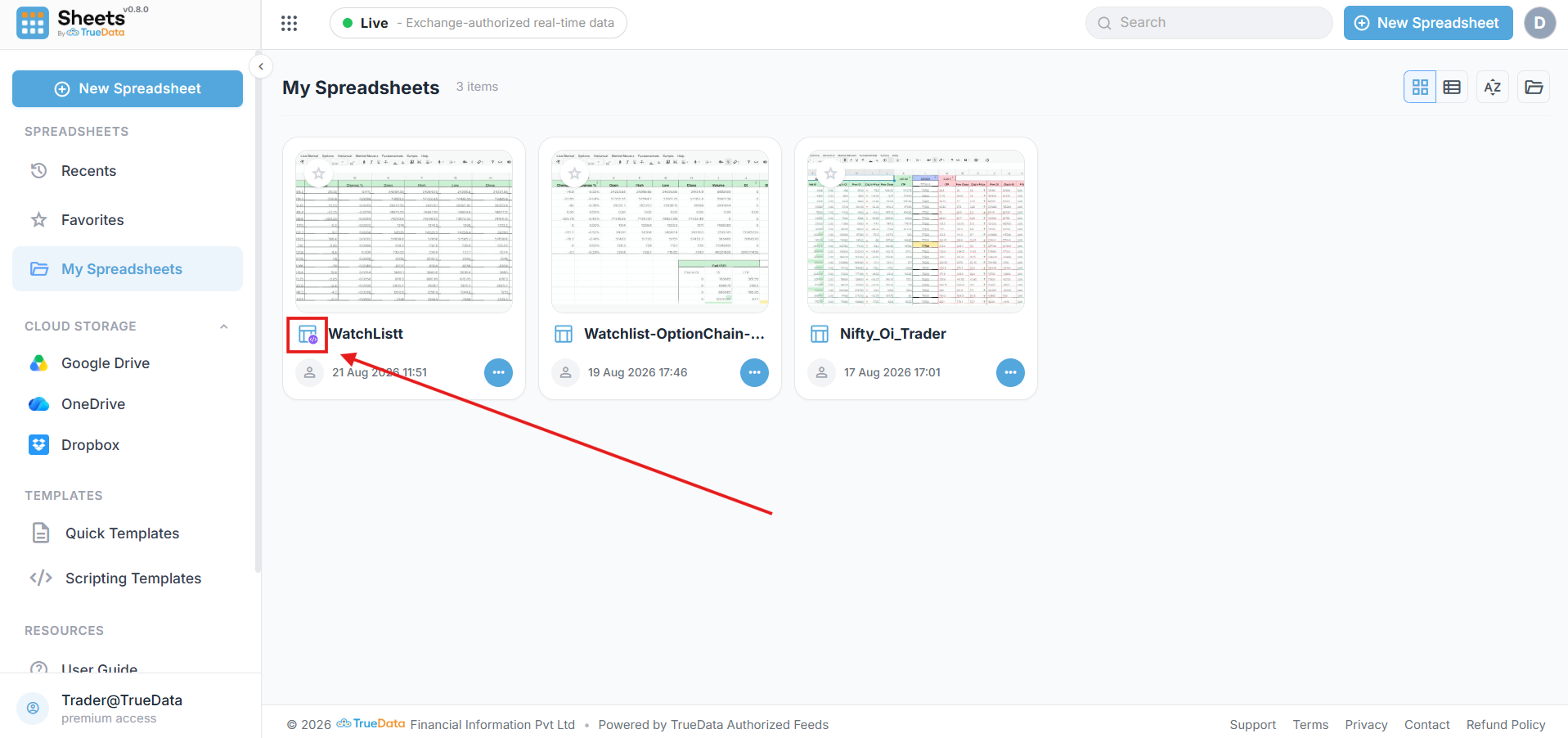
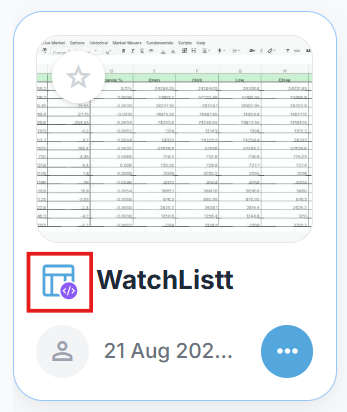
Sheets with a linked script display a badge on the bottom-right of the file icon - so you can instantly tell which files contain scripts without opening them.
Code Badge
The purple code badge appears on the bottom-right corner, marking sheets with attached script logic.
At-a-glance Recognition
No need to open the file - the badge on the theme-colored sheet icon tells you instantly.
Always in Sync
The badge updates automatically whenever a script is added or removed from a sheet.
Trash & Auto-Delete
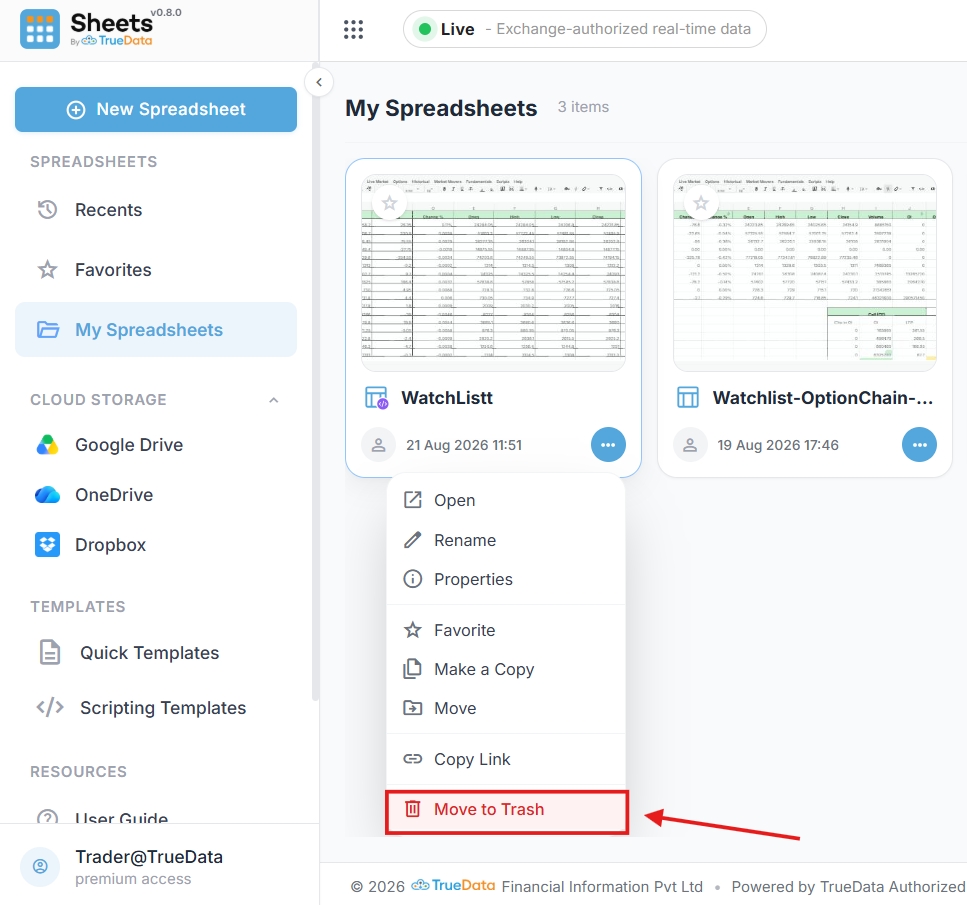
Deleted files aren't gone immediately - they're kept safe in Trash so you can recover them if needed.
-
Move to Trash: Right-click any file and choose "Move to Trash" from the context menu.
-
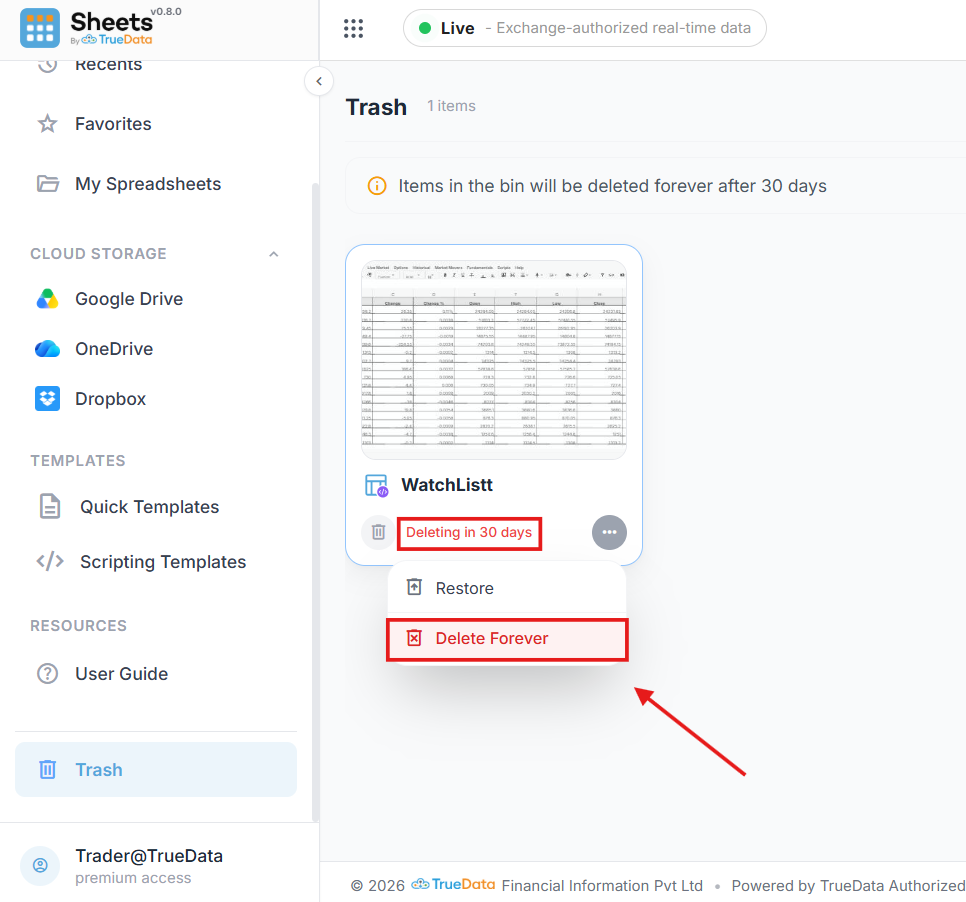
Restore Anytime: Open the Trash section and restore files before the 30-day period expires.
-
30-Day Auto-Delete: Files are permanently deleted after 30 days in Trash.
-
Permanent Deletion: Emptying Trash permanently removes files and cannot be undone.
 Sheets by Truedata
Empowering traders and analysts with high-performance real-time market data directly within their spreadsheets.
Resources
Support
© 2026 TrueData Market Data Services LLP. All rights reserved.