

No results for ""
Alert Manager
Creating an Alert
Alert Manager watches any cell in your sheet and notifies you the moment it meets a condition you set. Because alerts read the cell's live value, they work with real-time prices, option chain data, and formula results. Open Alert Manager from the bell icon in the right-hand toolbar, click + to start a new alert, fill in the form, and click Done.
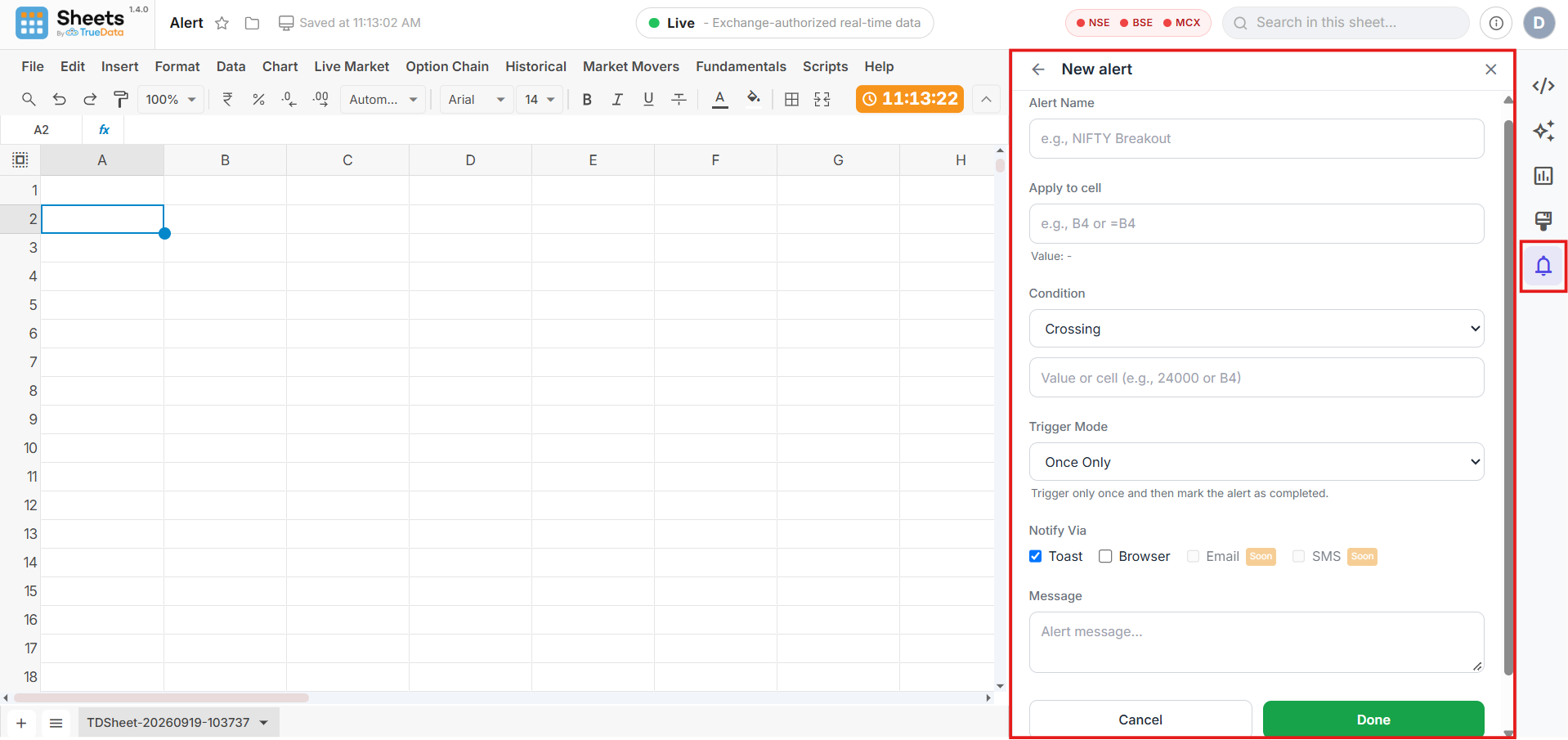
Screenshot: The New alert form open beside the sheet.
Pick a cell
Choose the cell to watch, e.g. a live LTP in B4.
Set a condition
Define when to fire, e.g. Cross Above 24250.
Get notified
Choose how you are alerted and what the message says.
Alert Form
The New alert form has seven fields. Click Done to activate the alert or Cancel to discard it. The back arrow at the top returns you to your alerts without saving.
| Field | What to enter |
|---|---|
| Alert Name | A short name to identify the alert, e.g. "NIFTY Breakout". It appears in your alert list. |
| Apply to cell | The cell to watch, e.g. B4 or =B4. The cell's current value is shown below the field as Value, so you can confirm you picked the right cell. |
| Condition | When the alert should fire. See Alert Conditions for all 13 options. |
| Value or cell | The level to compare against. Type a number such as 24000, or enter another cell such as B4 so the level follows that cell as it changes. |
| Trigger Mode | Once Only or Every time. See Trigger Mode & Notifications. |
| Notify Via | Tick one or more channels: Toast, Browser, Email, or SMS. |
| Message | The text shown when the alert triggers. If left blank, a message is generated from the condition, e.g. "A1 Cross Above 24,250.00". |
Alert Conditions
The Condition dropdown offers 13 options in four groups. In the table below, "your level" means the number or cell you enter in Value or cell.
| Group | Condition | Fires when |
|---|---|---|
| Crossing | Crossing | The cell value crosses your level in either direction. |
| Crossing | Cross Above | The cell value moves from below to above your level. |
| Crossing | Cross Below | The cell value moves from above to below your level. |
| Channel | Entering Channel | The cell value moves into your price range. |
| Channel | Exiting Channel | The cell value moves out of your price range. |
| Comparison | Equal to | The cell value equals your level. |
| Comparison | Not equal to | The cell value differs from your level. |
| Comparison | Greater than | The cell value is above your level. |
| Comparison | Greater than or equal to | The cell value is at or above your level. |
| Comparison | Less than | The cell value is below your level. |
| Comparison | Less than or equal to | The cell value is at or below your level. |
| Range | Between | The cell value falls inside your range. |
| Range | Not between | The cell value falls outside your range. |
Trigger Mode & Notifications
Trigger Mode decides how often an alert fires. Notify Via decides how you hear about it.
Once Only
Triggers a single time, then the alert is marked as completed. This is the default.
Every time
Stays active and triggers each time the condition is met.
Notify Via options
| Option | What it does | Status |
|---|---|---|
| Toast | Shows a pop-up message inside the sheet. | On by default |
| Browser | Sends a browser notification, so you are alerted even when you are on another tab. | Available |
| Sends the alert to your inbox. | Coming soon | |
| SMS | Sends the alert as a text message. | Coming soon |
Managing Your Alerts
Every alert you create appears as a card in the Alert Manager panel, so you can see what is being watched and change it at any time.
Alert card — field reference
| Name & badge | The alert name, with a badge such as ONCE ONLY showing its trigger mode. |
| Condition | The watched cell, the condition, and your level, e.g. "A1 Cross Above 24250". |
| Message | The text that will be shown when the alert triggers. |
| Status | Shows Active while the alert is being monitored. |
| Last | When the alert last triggered. A dash (-) means it has not triggered yet. |
Alert actions
Pause
Stops the alert from firing without deleting it.
Edit
Opens the alert form so you can change any field.
Delete
Removes the alert from your sheet.
Panel header buttons
| Clock (history) icon | Opens Triggered History. |
| + icon | Opens the New alert form. |
| X icon | Closes the Alert Manager panel. Your alerts keep running. |
Triggered History
Triggered history lists the alerts that have fired during your current session. Click the clock icon at the top of the Alert Manager panel to open it, and use the back arrow to return to your alerts. Until an alert fires, the list is empty.
Example: Alert When NIFTY Crosses Above 24,250
Use these values in the New alert form to be notified once when the value in cell A1 moves above 24,250.
| Field | Enter |
|---|---|
| Alert Name | NIFTY Crossing |
| Apply to cell | A1 |
| Condition | Cross Above |
| Value or cell | 24250 |
| Trigger Mode | Once Only |
| Notify Via | Toast |
Sheets by Truedata
Empowering traders and analysts with high-performance real-time market data directly within their spreadsheets.
Resources
Support
© 2026 TrueData Market Data Services LLP. All rights reserved.